
Many offices, colleges and online forms accept only PDF files, because a PDF looks the same on every device and cannot be changed accidentally. Here are free ways to convert a Word (.docx) file to PDF.
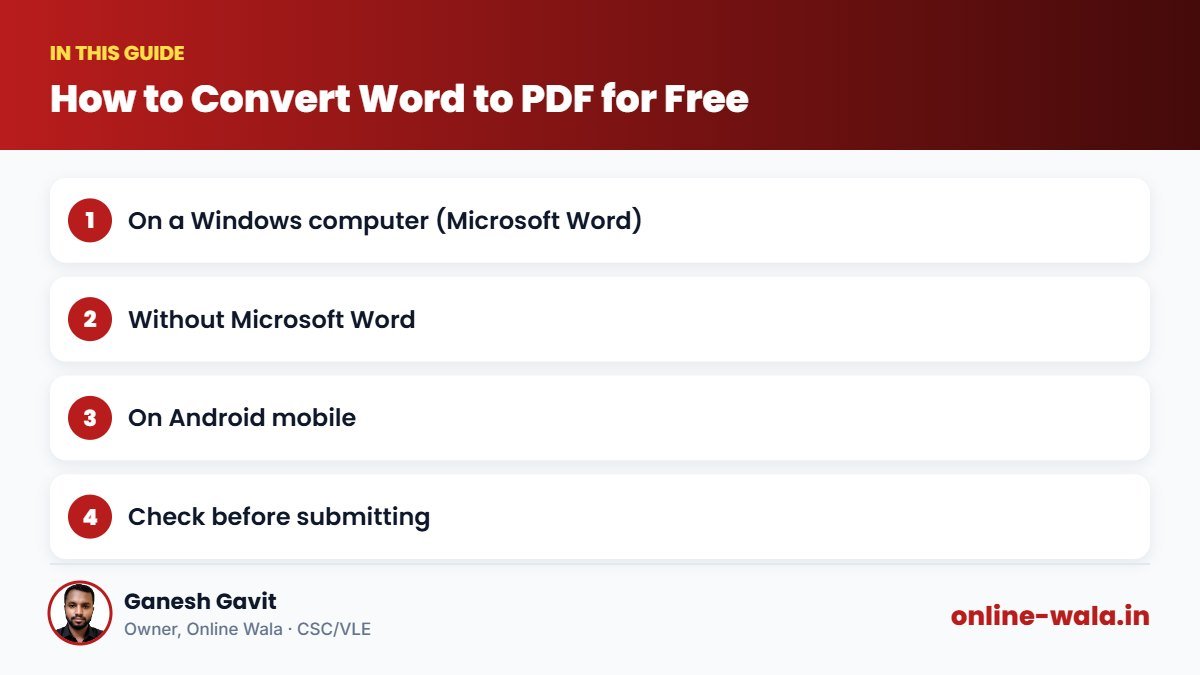
On a Windows computer (Microsoft Word)
- Open the document in Word.
- Click File → Save As (or Export).
- Choose PDF (*.pdf) in “Save as type”.
- Select Minimum size if you need a smaller file, then click Save.
Without Microsoft Word
- WPS Office / LibreOffice (free): open the file → File → Export to PDF.
- Google Docs: upload the .docx to Google Drive → open with Google Docs → File → Download → PDF document.
- Print to PDF: on any Windows 10/11 PC, press Ctrl + P and choose “Microsoft Print to PDF”.
On Android mobile
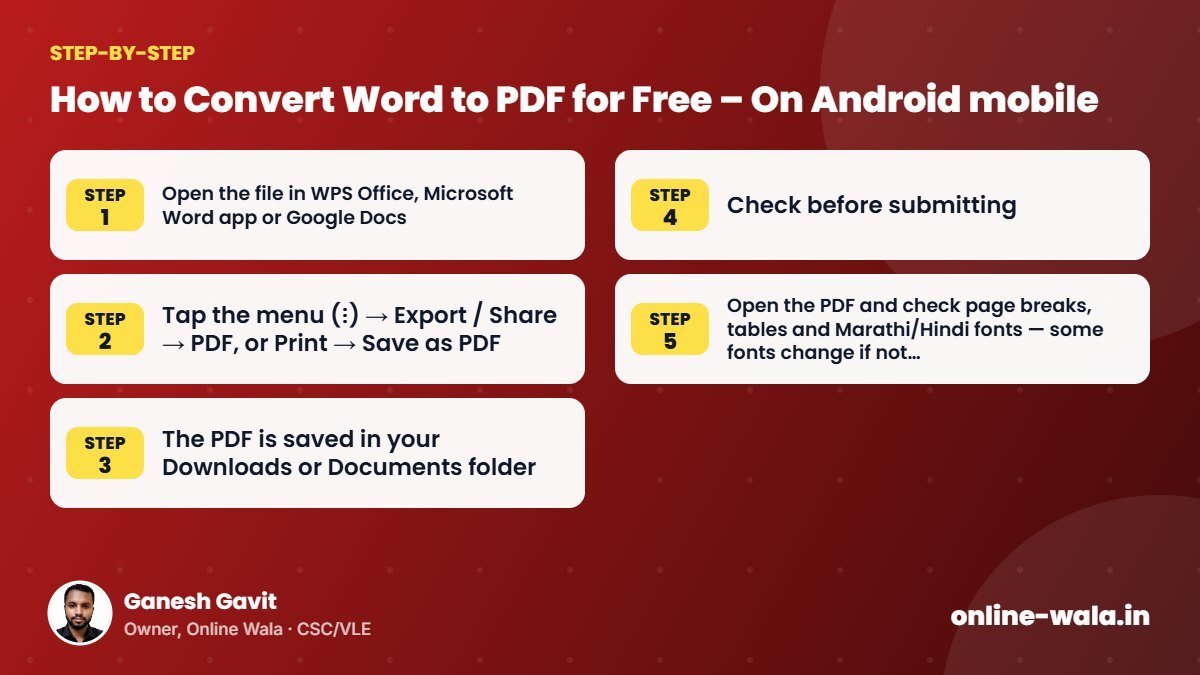
- Open the file in WPS Office, Microsoft Word app or Google Docs.
- Tap the menu (⋮) → Export / Share → PDF, or Print → Save as PDF.
- The PDF is saved in your Downloads or Documents folder.
Check before submitting
- Open the PDF and check page breaks, tables and Marathi/Hindi fonts — some fonts change if not embedded.
- Make sure the file name is clear, e.g. Name_Application_2026.pdf.
- If the portal has a size limit, see our guide on reducing PDF size.

About the author
Ganesh Gavit
Owner, Online WalaFounder of Ganesha Digital. Creates software, apps and ready-to-use templates for businesses, students and CSC/VLE operators.