
Scholarship forms, job applications, bank KYC, land record work – almost everything now needs scanned copies of documents. But a scanner machine is not available in every home, and even many small shops do not have one. People end up uploading tilted, dark phone photos that officials cannot read.
This guide explains how to scan documents with mobile properly and save them as a clear PDF. You will learn the right light, angle and settings, how to make a multi-page PDF, and how to keep the file size small enough for government portals.
Quick Answer: Place the document flat on a dark, plain surface in good daylight, hold the phone straight above it, and take the photo. Use a scanner tool to auto-detect the page edges, fix the perspective, clean the background to white, and save all pages as one PDF. Compress the PDF if the portal has a size limit.
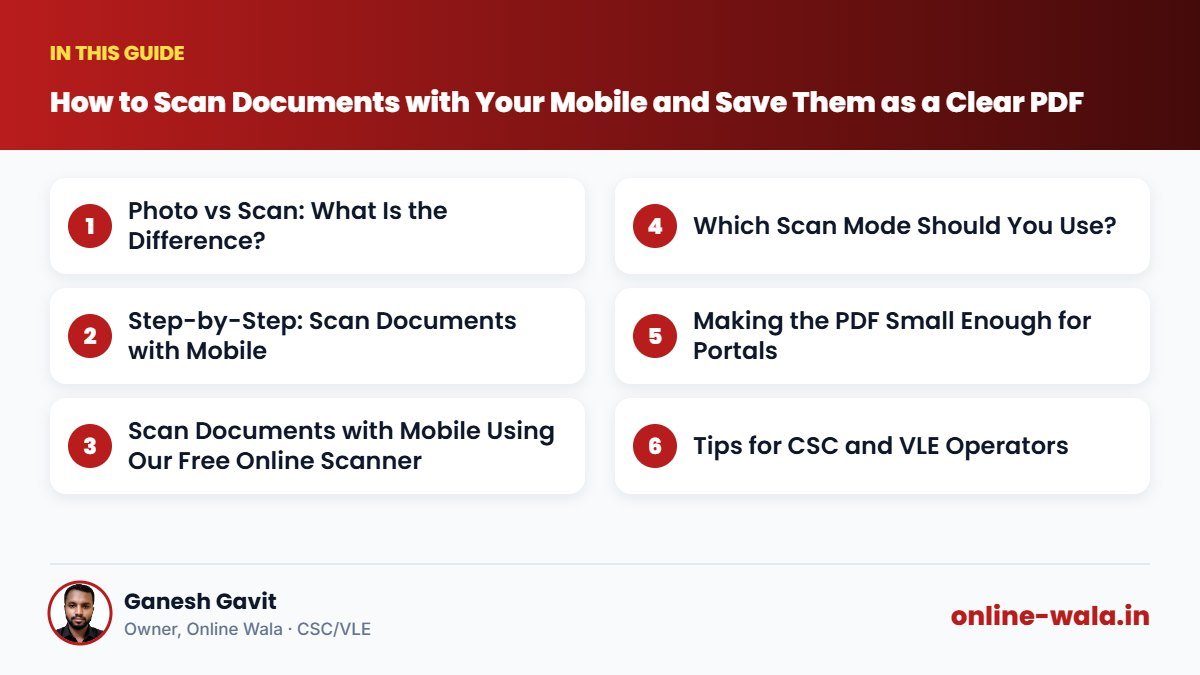
Photo vs Scan: What Is the Difference?
A normal phone photo of a document includes the table, shadows, a slanted angle and a yellowish colour. A proper scan looks like a flat page: straight edges, white background, dark readable text. Officials and portals expect a scan-like look. The good news is that your phone camera is good enough – you just need the right steps and a scanner tool to clean up the image.
Step-by-Step: Scan Documents with Mobile
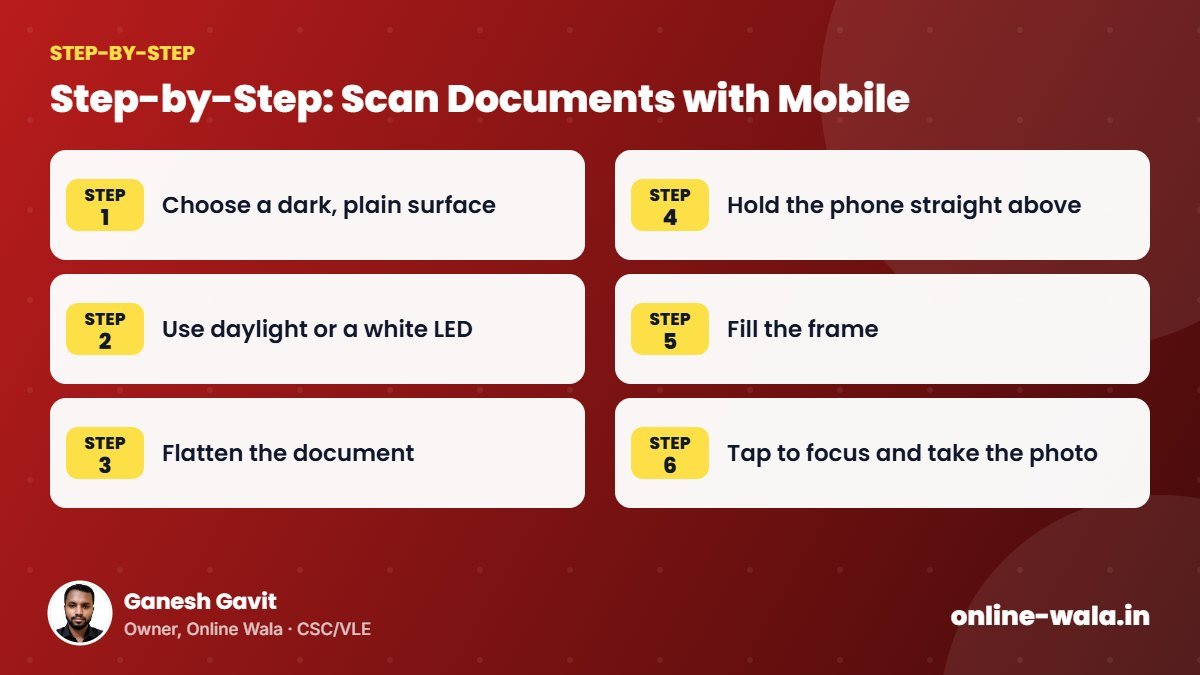
- Choose a dark, plain surface. A dark table, a dark bedsheet or a black file cover makes the white page edges easy to detect.
- Use daylight or a white LED. Avoid yellow bulbs and direct sun. Sit near a window for soft light.
- Flatten the document. Remove folds and keep it flat. For a booklet, press it gently open.
- Hold the phone straight above. Keep the phone parallel to the page, not tilted. Stand so your body does not cast a shadow.
- Fill the frame. The page should fill most of the screen with a little dark border visible around it.
- Tap to focus and take the photo. Hold steady for a second so the photo is not blurred.
- Repeat for every page in the correct order.
Scan Documents with Mobile Using Our Free Online Scanner
You do not need to install any app. Our free online document scanner works in your phone's browser:
- Open the Document Scanner tool.
- Take a photo with the camera or upload existing photos of the pages.
- The tool detects the paper edges. Adjust the corners if needed.
- It fixes the perspective so the page looks flat and straight.
- Choose a mode: colour, clean white background, or black & white for text pages.
- Add more pages and arrange them in order.
- Download all pages as one PDF.
At our CSC centre we use this method daily for customers who come with original documents but no copies. It takes about a minute per document.
Which Scan Mode Should You Use?
| Mode | Best for | File size |
|---|---|---|
| Colour | Certificates with coloured stamps, photos, ID cards | Largest |
| Clean / enhanced | Most documents – white paper, dark text, blue stamps | Medium |
| Black & white | Plain text pages, affidavits, typed letters | Smallest |
| Grayscale | Documents with faint print or pencil marks | Medium |
If a stamp or signature colour matters (for example a blue ink signature or a red seal), keep colour or clean mode instead of pure black & white.
Making the PDF Small Enough for Portals
Many portals accept documents only up to 100 KB, 200 KB, 500 KB or 1 MB. After scanning:
- Use black & white or grayscale for text-only pages.
- Scan only the pages the form asks for.
- If the PDF is still large, use our PDF Compress tool to reduce it to 100 KB, 200 KB or more.
- If the portal wants separate images instead of a PDF, use PDF to Image or save individual pages as JPG.
Common Mistakes When Scanning with a Phone
- Slanted photo taken at an angle – text looks narrow at one end.
- Shadow of the hand or phone across the page.
- Flash glare on glossy certificates or laminated cards. Turn off the flash and use daylight.
- Cut edges. The certificate number or seal at the corner gets cut off.
- Wrong page order in a multi-page PDF.
- Too many pages in one file when the portal wants each document separately.
- Scanning photocopies of photocopies – the quality drops each time. Scan the original whenever possible.
Tips for CSC and VLE Operators
- Create a scanning corner with a dark mat and a white LED panel above. Every scan looks professional.
- Name PDFs clearly: "Name_DocumentType.pdf", for example "Sunita_Caste_Certificate.pdf".
- Merge when needed: Some portals want one PDF with all documents. Use our PDF Merge tool to join them in the right order.
- Give customers a copy on WhatsApp only if they ask, and only to their own number.
- Do not store documents longer than needed on shared computers. Customers trust you with Aadhaar, caste and income documents.
Real Example from Our CSC Centre
A farmer came with a folded 7/12 extract, an old ration card and a bank passbook for a scheme application. The portal wanted one PDF under 500 KB. We flattened each paper on a dark mat, scanned them with the phone in clean mode, kept the passbook page in colour because the bank stamp was blue, arranged the pages and compressed the final PDF to about 400 KB. The whole job took under ten minutes, and the officer could read every number clearly.
Checklist Before You Upload
- All four corners of every page are visible
- Text is readable when zoomed in
- Stamps and signatures are clear
- Pages are in the correct order and upright
- File type and size match the portal's rules
How to Scan ID Cards and Small Documents
Aadhaar cards, PAN cards, voter ID cards and bank passbooks are small, so phones often focus on the table instead of the card. Place the card in the centre of a dark surface, move the phone closer until the card fills about two-thirds of the screen, and tap on the card to focus. Scan the front and back separately. Many portals want both sides on one page; in that case, add both scans as two pages and then use the tool's layout, or place both images on one A4 page with Image to PDF.
For laminated cards, glare is the biggest problem. Turn off the flash, tilt the card very slightly away from the window light, and check the photo for white shine spots before saving.
Scanning Old or Faded Documents
Old land records, school leaving certificates and handwritten papers are often faded, torn or stained. For these:
- Use grayscale or colour mode instead of black & white, which can make faint text disappear.
- Scan at a higher quality first, then compress the final PDF.
- Handle torn papers gently; place them inside a clear plastic sleeve if needed, but avoid glare.
- If any part is unreadable even in the original, mention it to the office; do not try to write over the document.
Frequently Asked Questions
Can a mobile phone scan be used for government forms?
Yes, if it is clear and readable. Most portals only check that the document is legible and within the size limit.
How do I scan multiple pages into one PDF on mobile?
Use a scanner tool that lets you add pages one by one and download them as one PDF. Our online Document Scanner supports multi-page PDFs.
Which is better for documents: colour or black and white?
Black and white is smaller and sharp for plain text. Use colour when stamps, photos or coloured seals must be visible.
How can I reduce the scanned PDF size?
Scan in black and white or grayscale, include only needed pages, then compress the PDF with a PDF compress tool.
Why is my scanned document dark or yellow?
Usually because of yellow bulb light or shadows. Scan in daylight and use the clean or enhanced mode to whiten the background.
Do I need to install an app to scan?
No. You can scan in the browser with our online Document Scanner. Apps are optional.
Is it safe to scan documents online?
The tool processes images to create your PDF. Use your own device for personal documents, and never share OTPs or passwords with anyone.
Conclusion
A phone and the right method can give you scans that look like they came from a scanner machine. Keep the page flat, use good light, hold the phone straight, and let a tool fix the edges and background. Next time you need a document copy, scan documents with mobile using our free online scanner and save them as a clear PDF in minutes.
Online Wala is not affiliated with any government department. Check each portal's instructions for the latest document and size rules.

Ganesh Gavit
Owner, Online WalaFounder of Ganesha Digital. Creates software, apps and ready-to-use templates for businesses, students and CSC/VLE operators.