
Paper Aadhaar letters tear and fade, and the long A4 e-Aadhaar is not handy to carry. That is why so many people ask CSC centres and print shops for an "Aadhaar PVC card". But many get stuck at the first step – the e-Aadhaar PDF asks for a password – and then the printed card comes out in the wrong size.
This guide explains how to print e-Aadhaar as a PVC card the right way: downloading it from the official UIDAI website, opening it with the correct password, cutting the front and back to exact card size, and printing it cleanly.
Quick Answer: Download your e-Aadhaar from myaadhaar.uidai.gov.in using Aadhaar-linked mobile OTP. The PDF password is the first four letters of your name in CAPITAL letters followed by your year of birth (for example RAJE1990). Then use a card cutter tool to crop the front and back to 85.6 × 54 mm and print at actual size on a PVC sheet or card printer.
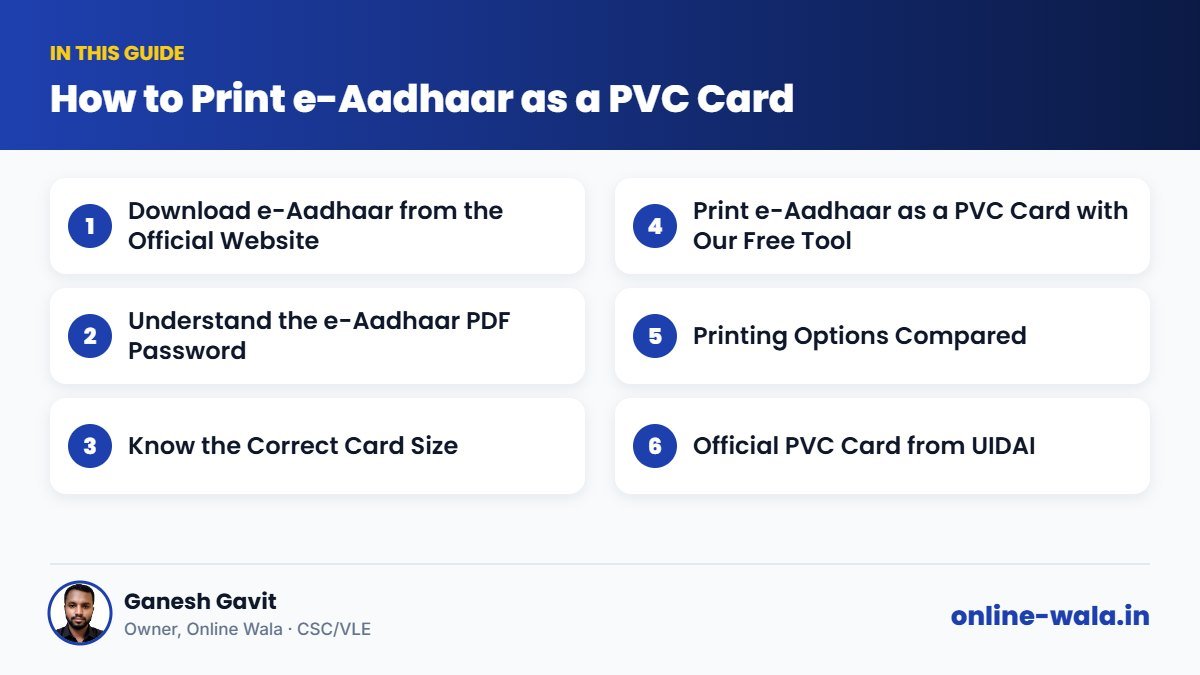
Step 1: Download e-Aadhaar from the Official Website
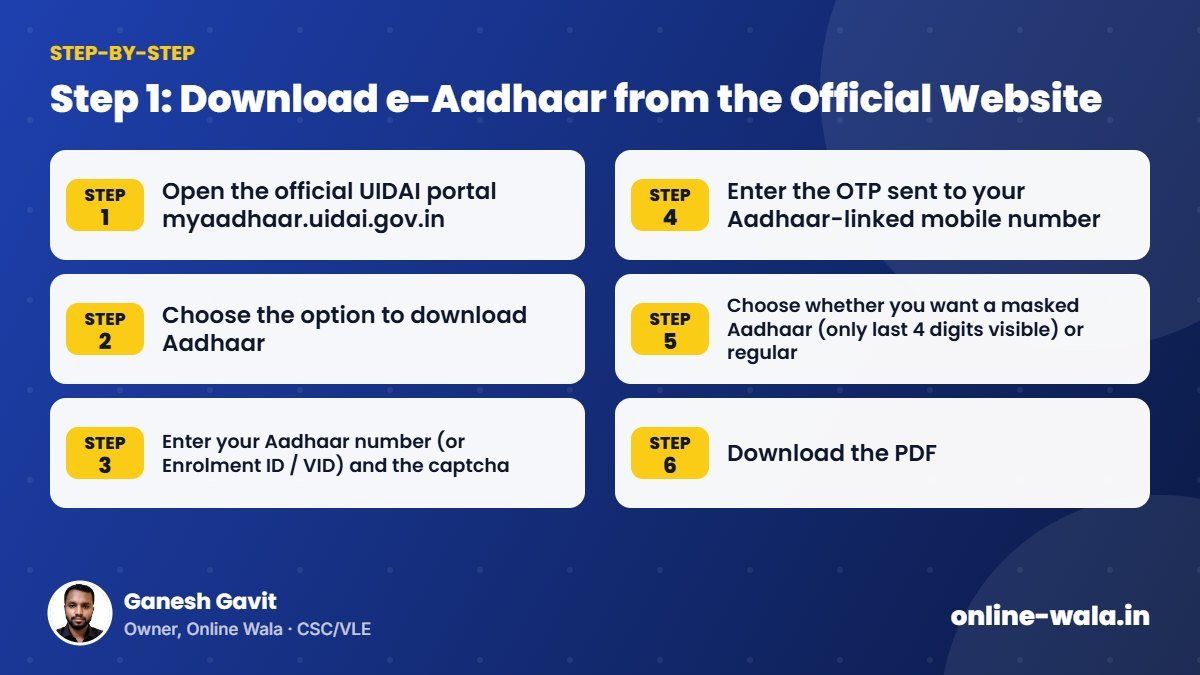
- Open the official UIDAI portal myaadhaar.uidai.gov.in.
- Choose the option to download Aadhaar.
- Enter your Aadhaar number (or Enrolment ID / VID) and the captcha.
- Enter the OTP sent to your Aadhaar-linked mobile number.
- Choose whether you want a masked Aadhaar (only last 4 digits visible) or regular.
- Download the PDF.
You can also download e-Aadhaar through the official mAadhaar app or DigiLocker. Never download Aadhaar from unknown websites or WhatsApp links, and never share the OTP with anyone. The steps on the portal may change, so check the official website for the latest process.
Step 2: Understand the e-Aadhaar PDF Password
The e-Aadhaar PDF is protected. As per UIDAI, the password is:
First 4 letters of your name (as printed in Aadhaar) in CAPITAL letters + Year of birth (YYYY)
| Name on Aadhaar | Year of birth | Password |
|---|---|---|
| Rajesh Pawar | 1990 | RAJE1990 |
| Sunita Gavit | 1985 | SUNI1985 |
| P. Kumar | 2001 | P.KU2001 |
| Sai Kumar | 1990 | SAIK1990 |
| Ria | 1990 | RIA1990 |
Names with dots, spaces or less than four letters can be confusing. UIDAI's own download page explains the rule for such cases, so check it there if the usual password does not work.
Step 3: Know the Correct Card Size
An Aadhaar PVC card uses the standard ID-1 card size – the same as an ATM card:
- Width: 85.6 mm
- Height: 54 mm
- Corners: rounded (done with a corner cutter after printing)
Most mistakes happen when people crop by eye and print with "fit to page" – the card comes out too big or too small and does not fit in a wallet slot.
Step 4: Print e-Aadhaar as a PVC Card with Our Free Tool
Our free Aadhaar card cutter to print e-Aadhaar as a PVC card does the cutting for you:
- Open the Aadhaar Card Cutter tool.
- Upload the e-Aadhaar PDF you downloaded from UIDAI.
- Enter the PDF password (first 4 letters of name in capitals + year of birth).
- The tool finds the front and back card sections. Adjust the crop if needed.
- Choose the output: PVC printer layout, A4 sheet or 4×6 photo paper.
- Download the print-ready PDF and print at 100% / actual size.
The tool only cuts and arranges the file you already have. It does not download Aadhaar data from anywhere.
Printing Options Compared
| Method | Result | Notes |
|---|---|---|
| Inkjet PVC sheet (A4 with card cutouts) | Durable plastic card | Needs a compatible inkjet printer and PVC tray or sheet |
| PVC card printer | Best finish | Higher equipment cost; ideal for busy centres |
| A4 card sheet + lamination | Good, low cost | Cut carefully and laminate both sides |
| 4×6 photo paper | Sharp colour print | Laminate for durability |
Official PVC Card from UIDAI
UIDAI also offers an official Aadhaar PVC card that you can order online from its website for a small fee; it is sent to your address by post and has security features. UIDAI has advised that plastic cards printed in the open market may not carry these features. A self-printed card is a convenient copy of your e-Aadhaar, while the e-Aadhaar PDF itself is a valid form of Aadhaar as per UIDAI. Check the official website for current details of the PVC card service.
Why Is a Password Used on e-Aadhaar?
The password protects your Aadhaar details if the PDF reaches the wrong person, for example through a lost phone or a shared computer. That is also why you should never write the password on the printout or save it in the file name. Once you open the PDF and make a card print, keep the original PDF in a safe folder on your own phone, and delete it from any shop or office computer after printing.
How to Check Your Printed Card
- Measure the card with a scale: it should be 85.6 mm wide and 54 mm tall.
- Check that the photo, name, date of birth and gender are sharp and not cut.
- Check that the QR code is fully visible and not blurred; it is used for offline verification.
- Place the front and back against a light source to see that they line up.
- Round the corners and, if needed, laminate for paper-based cards.
Common Mistakes
- Wrong password format – using small letters or the full date of birth.
- Printing with "fit to page" – changes the card size.
- Cropping by hand – uneven borders, cut QR code.
- Front and back misaligned on double-sided PVC printing.
- Downloading from unofficial sites – a privacy risk.
- Editing details on the card – never edit Aadhaar data. Corrections must go through UIDAI's official update process.
Tips for CSC and VLE Operators
- Offer masked Aadhaar for customers who mainly use the card for identity, as it hides the first 8 digits.
- Do a test print on plain paper first and measure with a scale: 85.6 × 54 mm.
- Print in batches on a multi-card PVC sheet to save time and material.
- Use a corner rounder for a professional finish.
- Never keep customers' Aadhaar PDFs longer than needed, and never reuse them for any other purpose.
- Explain the difference between your printed card and the official UIDAI PVC card honestly.
Real Example from Our CSC Centre
An elderly customer came with a torn Aadhaar letter and wanted a plastic card. His mobile number was linked, so he downloaded the masked e-Aadhaar himself at our counter with OTP, and we helped him with the password – his name had an initial and a dot, so we followed UIDAI's rule carefully. We cut the front and back to exact size, printed on a PVC sheet, rounded the corners and also told him that he can order the official PVC card from UIDAI if he wants one with security features.
Frequently Asked Questions
What is the password of the e-Aadhaar PDF?
The first four letters of your name in capital letters followed by your year of birth, for example RAJE1990. Check UIDAI's instructions for names with fewer than four letters or special characters.
What is the size of an Aadhaar PVC card?
85.6 mm × 54 mm, the standard ID-1 size used for ATM cards.
Is a self-printed Aadhaar PVC card valid?
The e-Aadhaar is valid as per UIDAI, and a print is a copy of it. For an official PVC card with security features, order it from UIDAI's website.
Can I print masked Aadhaar as a PVC card?
Yes. Download the masked e-Aadhaar and cut it the same way. Only the last four digits will be visible.
Why does my card print smaller or bigger?
Your printer is scaling the page. Set "Actual size" or "100%" and turn off "Fit to page".
My mobile is not linked with Aadhaar. How do I download e-Aadhaar?
You will need to link or update your mobile number at an Aadhaar enrolment or update centre first, as per UIDAI's process.
Does Online Wala store my Aadhaar?
The tool processes the PDF only to cut and arrange the card for printing. Use it on your own device and never share OTPs or passwords with anyone.
Conclusion
A neat Aadhaar card print needs three things: the official e-Aadhaar PDF, the correct password, and exact 85.6 × 54 mm cutting. Use our free tool to print e-Aadhaar as a PVC card, and see our other card tools like the e-PAN Card Cutter and e-Shram Card Cutter.
Online Wala is not affiliated with UIDAI or any government department. Check the official website for the latest process.

Ganesh Gavit
Owner, Online WalaFounder of Ganesha Digital. Creates software, apps and ready-to-use templates for businesses, students and CSC/VLE operators.