Many online applications have only one upload box for "supporting documents". You have your Aadhaar as one PDF, your income certificate as another, your mark sheet as a third. The portal wants a single file. Without a computer and paid software, many people do not know how to join them.
In this guide you will learn how to merge PDF files into one PDF online for free, how to arrange the order, how to take only selected pages, and how to keep the final file under the portal's size limit.
Quick Answer: Open a free PDF merge tool, add all your PDF files, drag them into the correct order, choose page ranges if you need only some pages, rotate any sideways pages, and download the combined PDF. If it is too big for the portal, compress it afterwards.
When Do You Need to Merge PDFs?
- Scholarship or admission portals with one "all documents" upload box
- Bank or loan files where all KYC documents must be sent together
- Job applications by email that ask for "a single PDF"
- Office records, where related papers should stay together
- Printing a set of documents in one go at a CSC or print shop
Merge PDF Files into One PDF Online with Our Free Tool
Our free tool to merge PDF files into one PDF online works on mobile and computer:
- Open the PDF Merge tool.
- Add all the PDF files you want to join.
- Drag the files into the right order. The first file in the list becomes the first pages of the final PDF.
- If you need only some pages from a file, enter a page range such as 1-3,5.
- Rotate any page that is sideways or upside down.
- Tap merge and download the single PDF.
The same tool also lets you extract pages from a PDF, which is useful when a long document has only one or two pages you actually need.
Understanding Page Ranges
| You type | Pages taken |
|---|---|
| 1 | Only page 1 |
| 1-3 | Pages 1, 2 and 3 |
| 1-3,5 | Pages 1, 2, 3 and 5 |
| 2,4,6 | Pages 2, 4 and 6 |
| (blank) | All pages |
Page ranges are very helpful with bank statements, long certificates or multi-page forms where only the first page and the signature page are needed.
A Good Order for Common Applications
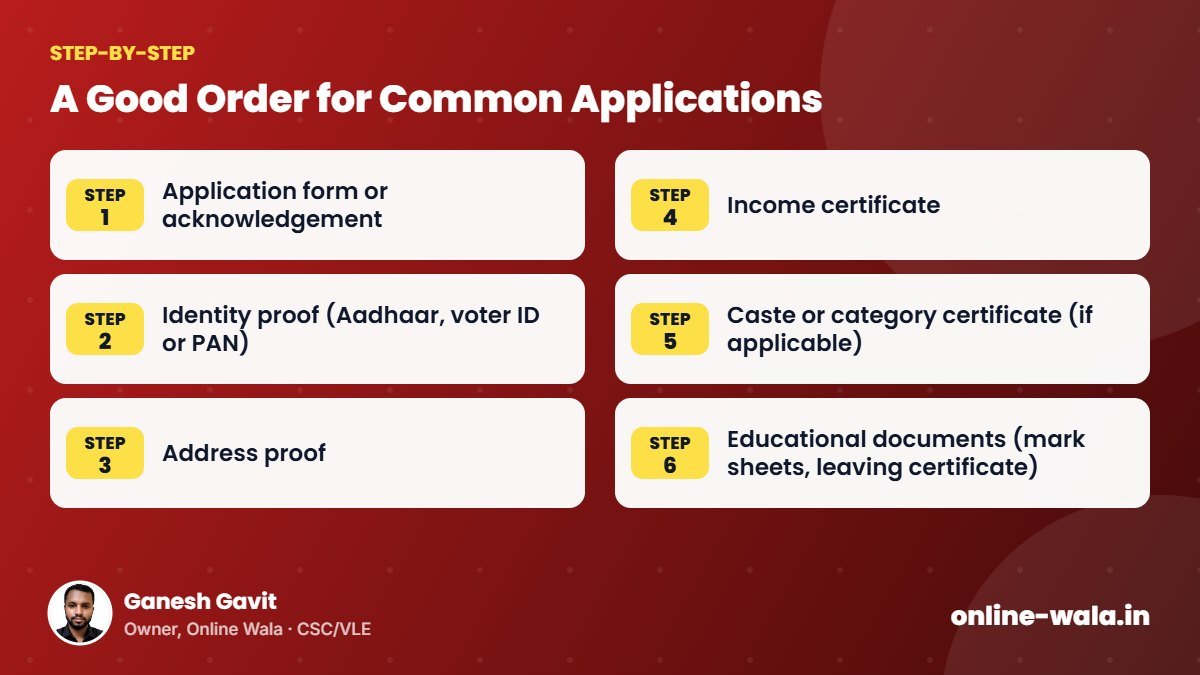
If the portal does not give an order, use a logical one that an officer can follow easily:
- Application form or acknowledgement
- Identity proof (Aadhaar, voter ID or PAN)
- Address proof
- Income certificate
- Caste or category certificate (if applicable)
- Educational documents (mark sheets, leaving certificate)
- Bank passbook first page
- Other supporting documents
If the notification lists documents in a specific order, always follow that order instead.
Keeping the Merged PDF Within the Size Limit
When you join many files, the size adds up. A portal might allow only 1 MB or 2 MB for the combined PDF. To stay within the limit:
- Remove unnecessary pages using page ranges.
- Compress large individual files before merging, or compress the final file with our PDF Compress tool.
- Avoid scanning plain text pages in full colour at very high resolution.
- If some documents are photos, convert them with Image to PDF using a size limit before merging.
Password-Protected PDFs
Some PDFs, like e-Aadhaar, e-PAN and bank statements, are protected with a password. A merge tool may not be able to read them until the password is removed. The simple and legal way is to open the file with its password (it is your own document), and print it to a new PDF or use a tool that accepts the password. Never try to break passwords of documents that do not belong to you.
Common Mistakes When Merging PDFs
- Wrong order – the officer cannot find documents quickly.
- Sideways pages – always rotate before merging.
- Duplicate pages – the same document added twice by mistake.
- Merging when separate uploads are required – read the portal carefully.
- Too large file – the upload fails at the last minute.
- Blank pages from scanning the back side of a single-sided document.
Merge vs Image to PDF vs Compress
| Task | Tool |
|---|---|
| Join several PDF files | PDF Merge |
| Turn photos into a PDF | Image to PDF |
| Make a PDF smaller | PDF Compress |
| Take only some pages out | PDF Merge (page range / extract) |
| Get JPG images from a PDF | PDF to Image |
Tips for CSC and VLE Operators
- Make a checklist per service (scholarship, caste certificate, loan file) with the order of documents. Merge in the same order every time.
- Keep individual files as well as the merged one. If one document changes, you can re-merge quickly.
- Use page ranges to avoid adding 10-page bank statements when only page 1 is needed.
- Name the merged file with the customer's name and service, like "Sanjay_Scholarship_All_Documents.pdf".
- Check the final PDF page by page before upload.
- Protect privacy by deleting merged files after the application is submitted, unless the customer asks you to keep a copy.
Real Example from Our CSC Centre
For a post-matric scholarship application, a student had six separate PDFs: Aadhaar, income certificate, caste certificate, two mark sheets and a bank passbook page. The portal's "other documents" box accepted only one PDF up to 1 MB. We arranged the files in the order listed in the instructions, took only page 1 of the bank file using a page range, rotated one sideways mark sheet and merged them. The result was 1.6 MB, so we compressed it to about 800 KB. The upload went through and every page was readable.
Merging PDFs on a Computer vs Mobile
On a computer, you can drag many files at once into the merge tool and reorder them easily with a mouse. On a mobile, select files from the Files or Downloads folder; if a document is in WhatsApp, first save it to your phone's storage. Both give the same result. For very large files or more than 20 documents, a computer is more comfortable because it has more memory and a bigger screen for checking pages.
How to Check a Merged PDF Properly
- Open the merged file and look at the total page count. It should equal the sum of pages you selected.
- Scroll through every page and confirm the order matches your checklist.
- Zoom into one or two pages to make sure text is still clear.
- Check the file size in your Files app and compare it with the portal's limit.
- Rename the file clearly before uploading or sending.
This two-minute check prevents the most common problem we see: a missing page discovered only after the application is submitted and locked.
Adding a Cover Page
For office files or bank loan files, a simple cover page with the applicant's name, purpose and a list of enclosed documents makes the bundle very easy to review. Write it in a word processor or on paper, scan or save it as PDF, and merge it as the first file. Officers appreciate a tidy index, and it reduces back-and-forth questions.
Frequently Asked Questions
How do I merge PDF files on my phone?
Open an online PDF merge tool in your phone browser, add the files, arrange the order and download the merged PDF. No app is needed.
Can I merge only some pages of a PDF?
Yes. Enter a page range like 1-3,5 for that file, and only those pages will be added.
Is there a limit on how many PDFs I can merge?
It depends on your device's memory and file sizes. For most applications, merging 5–15 files works smoothly.
Why can't I merge my e-Aadhaar PDF?
It is password-protected. Open it with its password first and save an unlocked copy, or use a tool that accepts the password.
How do I reduce the size of the merged PDF?
Remove extra pages and use a PDF compress tool to bring it down to the size your portal allows.
Will merging reduce the quality of my documents?
No. Merging only joins pages; it does not compress them. Quality changes only if you compress afterwards.
Are my files safe when merging online?
The tool processes files to merge them for you. Use your own device for personal documents and never share OTPs or passwords.
Conclusion
Merging PDFs is one of the most useful small skills for online applications. Arrange documents in a clear order, include only the pages needed, and keep the file size in check. Use our free tool to merge PDF files into one PDF online and submit your applications with a single, neat file.
Online Wala is not affiliated with any government department. Follow each portal's document and size instructions.

Ganesh Gavit
Owner, Online WalaFounder of Ganesha Digital. Creates software, apps and ready-to-use templates for businesses, students and CSC/VLE operators.