Lakhs of unorganised workers – farm labourers, construction workers, domestic workers, street vendors, drivers – have registered on the e-Shram portal. Many of them got a card printed once and then lost it, or have only an SMS with the number. When a scheme or survey asks for the e-Shram card, they come to the CSC asking for a "new card".
This guide explains how to do the e-Shram card download and print properly: who the card is for, how to download the UAN card from the official portal, and how to print it in neat ID-card size.
Quick Answer: Go to eshram.gov.in, choose the login or update option for registered users, enter your Aadhaar-linked mobile number and OTP, complete the verification, and download the UAN card PDF. Then use an e-Shram card cutter to crop it to 85.6 × 54 mm and print it on PVC, A4 or 4×6 paper at actual size.
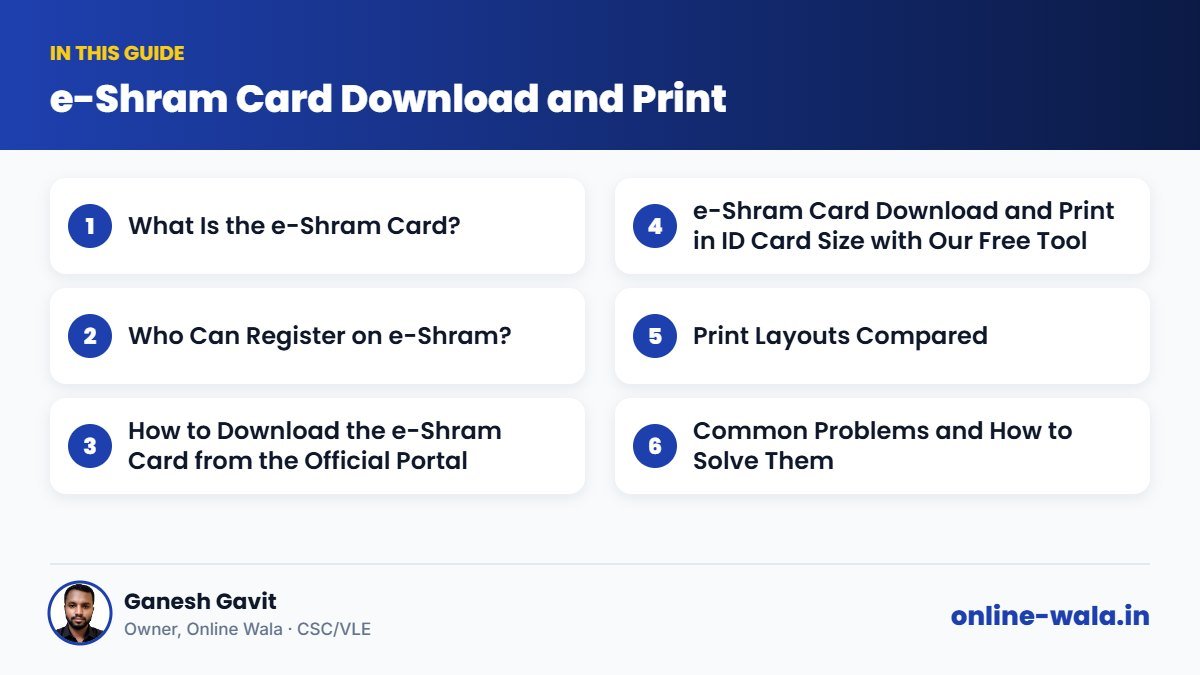
What Is the e-Shram Card?
e-Shram is the Government of India's national database of unorganised workers, run by the Ministry of Labour and Employment. When a worker registers, they get a 12-digit Universal Account Number (UAN) and an e-Shram card showing their name, UAN, photo and other basic details.
The registration is meant to help the government reach unorganised workers with social security and welfare schemes. The exact benefits linked to e-Shram can change over time, so check the official portal for current information.
Who Can Register on e-Shram?
As per the official guidelines, registration is generally for unorganised workers who:
- Are in the working age group mentioned on the portal (commonly 16 to 59 years)
- Work in the unorganised sector – for example agricultural labourers, construction workers, domestic workers, gig and platform workers, small vendors
- Are not members of EPFO or ESIC
- Are not income tax payers
Eligibility rules are set by the government and can be revised. Always read the eligibility section on eshram.gov.in before registering anyone.
How to Download the e-Shram Card from the Official Portal
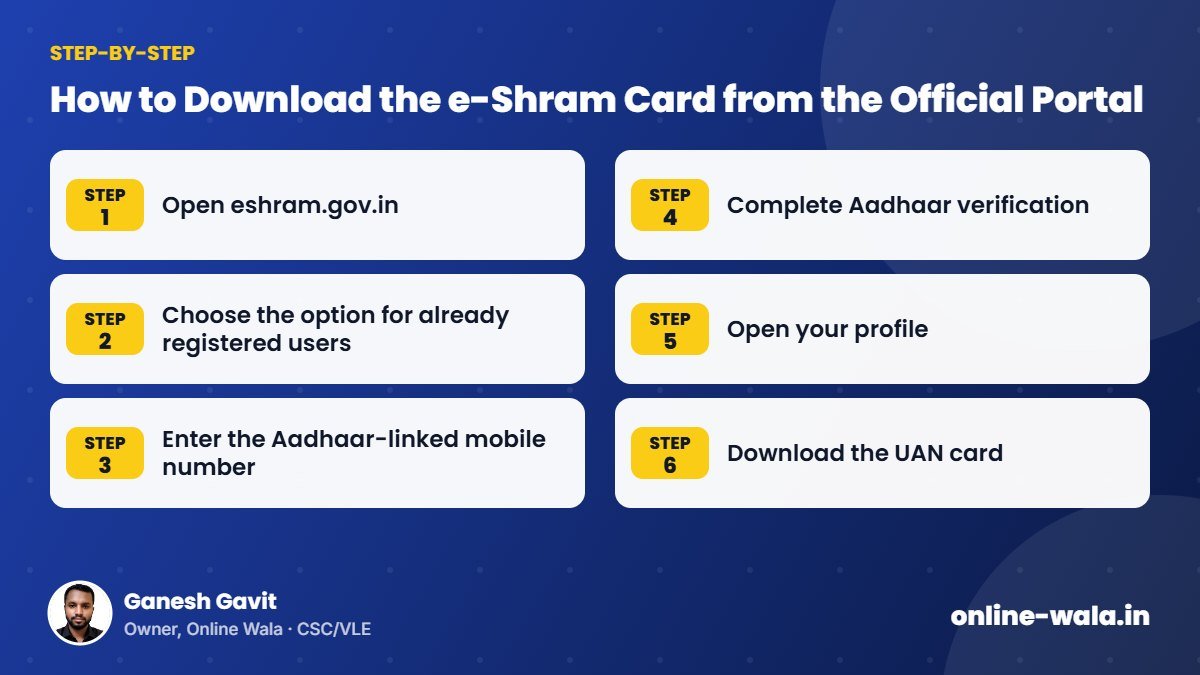
- Open eshram.gov.in. Use only the official website.
- Choose the option for already registered users (login or update).
- Enter the Aadhaar-linked mobile number and the captcha, then the OTP.
- Complete Aadhaar verification if the portal asks for it, using another OTP.
- Open your profile. Check that your details are correct.
- Download the UAN card as a PDF.
The menu names and steps on the portal can change. If you do not find an option, check the official website for the latest process or its help section. CSC operators can also help registered workers through the CSC route as permitted.
e-Shram Card Download and Print in ID Card Size with Our Free Tool
The downloaded file is a full page. To make a wallet card, use our free e-Shram card download and print tool (e-Shram Card Cutter):
- Open the e-Shram Card Cutter.
- Upload the UAN card PDF you downloaded from eshram.gov.in. The PDF usually has no password; if it asks for one, the tool shows a password box.
- Check the front and back crop. Adjust if needed.
- Choose the layout: PVC printer, A4 sheet or 4×6 photo paper.
- Download the print file and print at 100% / actual size.
The printed card is 85.6 × 54 mm – the same as an ATM or Aadhaar card – so it fits in a wallet.
Print Layouts Compared
| Layout | Best for | Tip |
|---|---|---|
| PVC printer / PVC sheet | Durable plastic card | Test alignment on paper first |
| A4 sheet | Low-cost print + lamination | Use 200–300 GSM card paper |
| 4×6 photo paper | Sharp colour print at home | Laminate after cutting |
Common Problems and How to Solve Them
- OTP not received. The mobile number must be linked with Aadhaar. If it is not, the worker has to update it at an Aadhaar centre first.
- Wrong details on the card. Use the update option on the portal to correct allowed fields, then download a fresh card. Do not edit the PDF.
- Card prints in wrong size. Turn off "Fit to page" in printer settings.
- Old photo or no photo. The photo comes from Aadhaar records. If it is old, it can only change through Aadhaar update.
- Duplicate registration. A worker should have only one UAN. Do not register again if already registered; just download the existing card.
- Fake websites and agents. Some people charge money claiming to give "e-Shram benefits". Always rely on the official portal and government announcements.
Tips for CSC and VLE Operators
- Check registration first. Before creating a new registration, check whether the worker is already registered by trying to log in with their mobile number.
- Keep a register of the cards you print with date and UAN (with the worker's consent), so repeat requests are faster.
- Print in batches during labour camps or village drives, using multi-card PVC sheets.
- Explain honestly what e-Shram is and that benefits are as per government schemes; do not promise any money.
- Protect data. Delete workers' PDFs after printing and never share them in groups.
- Also print other cards if needed with the Aadhaar Card Cutter and Ayushman Card Cutter.
Real Example from Our CSC Centre
A group of women working in farm labour came to our centre after a self-help group meeting. Most had registered on e-Shram two years earlier but had lost their cards. One of them tried to register again, which would have created confusion. We first checked each mobile number on the official portal, found their existing registrations, downloaded the UAN cards, and printed them together on a PVC sheet. Two of them had changed mobile numbers, so we guided them to update their Aadhaar-linked number first.
Checklist Before Printing
- Card downloaded from eshram.gov.in
- Name, UAN and photo checked with the worker
- Printer set to actual size
- Front and back aligned
- File deleted from shared computer after printing
Keeping Your e-Shram Details Updated
An e-Shram registration is useful only if the details are current. Workers often change their occupation, move to a new place for work, or change bank accounts. When this happens, log in on the official portal and update the fields that the portal allows, such as address, occupation, education or bank details. Updated records help the government reach the right workers when schemes or relief measures are announced.
Also keep the Aadhaar-linked mobile number active. Most problems we see at the counter happen because the worker has lost or changed the SIM card linked with Aadhaar, so the OTP never arrives. Updating the mobile number in Aadhaar first saves a lot of trouble later.
e-Shram Card vs Labour Card: Not the Same
Many people confuse the e-Shram card with the construction workers' card issued by state welfare boards (often called a labour card or BOCW card). They are different. e-Shram is a national database of unorganised workers. The construction workers' board registration is a separate state-level process with its own rules and benefits. A worker may have both. Do not assume one replaces the other – check each department's official instructions.
Frequently Asked Questions
How can I download my e-Shram card?
Visit eshram.gov.in, use the option for registered users, verify with your Aadhaar-linked mobile OTP, and download the UAN card from your profile.
Can I download the e-Shram card with my UAN number?
The portal mainly uses the Aadhaar-linked mobile number and OTP for login. Follow the options shown on the official site.
Does the e-Shram card PDF have a password?
Usually not. If your file asks for one, our tool shows a password box.
What is the size of the printed e-Shram card?
Our tool prints it at standard ID-1 size, 85.6 × 54 mm, like an ATM or Aadhaar card.
Can I register again if I lost my card?
No. If you are already registered, simply log in and download the card again. Do not create a duplicate registration.
How do I correct details on my e-Shram card?
Use the update option on eshram.gov.in for fields that can be changed. Details from Aadhaar change only through Aadhaar update.
Is my data safe with the Online Wala tool?
The tool processes the PDF only to cut it for printing. Never share OTPs or passwords with anyone.
Conclusion
The e-Shram card is a simple but useful identity for unorganised workers. Download it only from eshram.gov.in, check the details, and print it at the right size. For a quick wallet card, use our free e-Shram card download and print tool.
Online Wala is not affiliated with the Ministry of Labour and Employment or any government department. Check the official website for the latest process and eligibility.

Ganesh Gavit
Owner, Online WalaFounder of Ganesha Digital. Creates software, apps and ready-to-use templates for businesses, students and CSC/VLE operators.